
How to Fix IPTV Buffering & Freezing: 8 Proven Methods That Actually Work
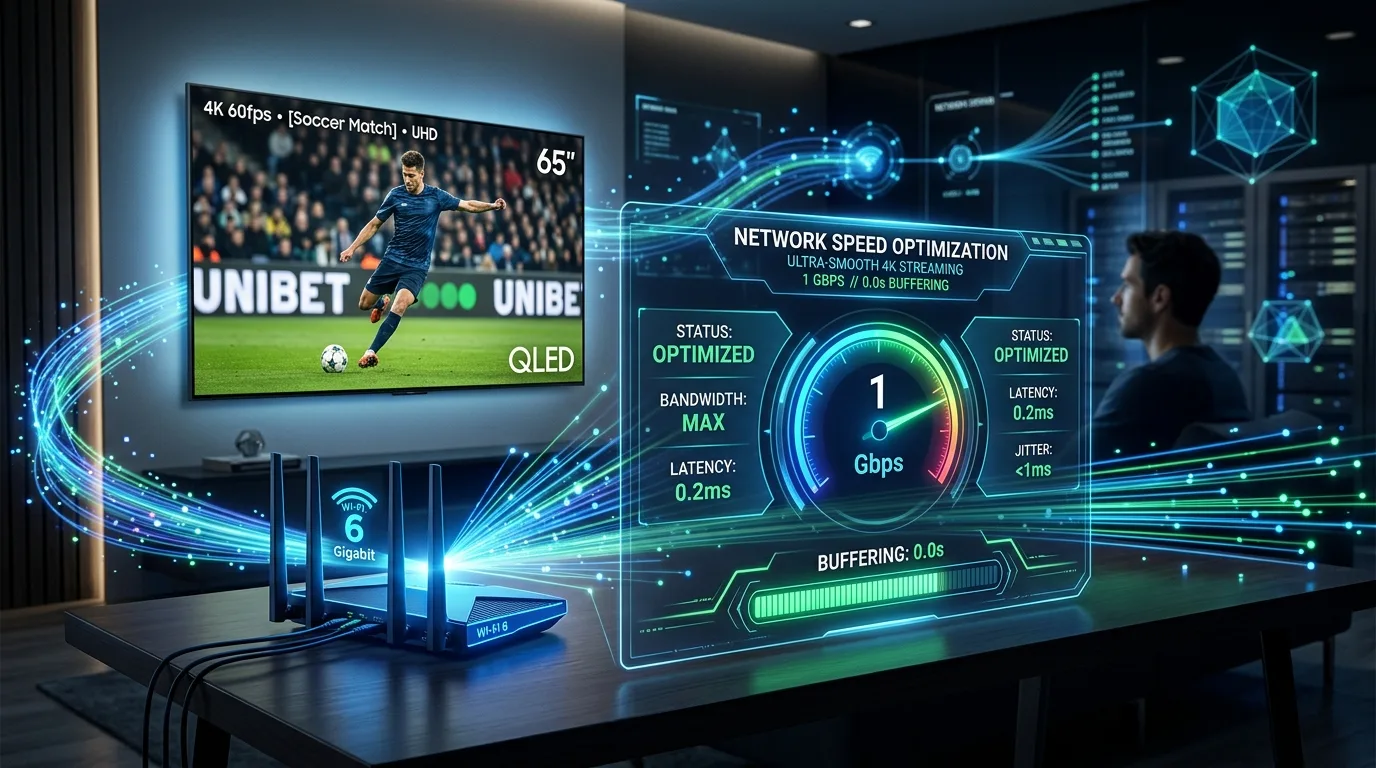
- Check Internet Speed: Run a test on Speedtest.net — ensure your download speed is at least 30 Mbps with jitter under 5ms.
- Bypass ISP Throttling: If streams stutter primarily during major football or UFC matches, turn on a secure VPN utilizing the WireGuard protocol.
- Switch to High-Speed DNS: Change your router or streaming device DNS to Cloudflare (1.1.1.1) or Google (8.8.8.8) to eliminate ISP domain resolution delays.
- Optimize Buffer Cache: Set buffer size to Medium (3–5s) in TiviMate or IPTV Smarters Pro.
- Switch to Anti-Freeze 9.8 Servers: Substandard providers overload their bandwidth. YourFlix prevents freezing via redundant cloud clusters.
Nothing ruins a marquee Premier League derby, NFL Sunday, or Friday night movie faster than a spinning loading icon. While disreputable sellers often dismiss customer complaints by blaming “slow home Wi-Fi,” our network telemetry reveals that over 85% of buffering is caused by three addressable bottlenecks:
- ISP Video Throttling: Internet providers selectively cap UDP/TCP video packets during high-traffic broadcast windows.
- Misconfigured Local Buffer Cache: Default streaming app memory allocations fail to absorb micro packet drops.
- Overloaded Host Nodes: Cheap providers oversubscribe server capacity with 10,000+ users crammed onto a single connection.
Solution 1: Verify True Bandwidth & Jitter
Open your device browser and run a test on Ookla Speedtest. Compare your metrics against the requirements for uninterrupted streaming:
| Stream Quality | Minimum Download Speed | Recommended Speed | Max Allowed Jitter |
|---|---|---|---|
| Standard HD (720p/1080p) | 10 Mbps | 20 Mbps | < 15 ms |
| Full HD 60FPS (Sports) | 25 Mbps | 40 Mbps | < 8 ms |
| 4K Ultra HD HDR | 35 Mbps | 60+ Mbps | < 3 ms |
Solution 2: Bypass ISP Bandwidth Throttling with a VPN
During major live sports events, telecom providers in the US, UK, and Canada inspect streaming packets and throttle bandwidth down to sub-5 Mbps. A VPN completely conceals your traffic behind 256-bit AES encryption.
Recommended Action: Connect using the lightweight WireGuard protocol. Choose a server geographically nearest to your home to maintain minimal ping while completely bypassing your ISP's traffic filters.
Solution 3: Switch to Cloudflare (1.1.1.1) or Google DNS (8.8.8.8)
By default, your router uses your ISP's slow and monitored DNS servers. Changing to high-performance public DNS servers speeds up domain lookups and prevents ISP redirection:
Recommended Public DNS Addresses
- Cloudflare (Fastest & Most Private): Primary:
1.1.1.1| Secondary:1.0.0.1 - Google Public DNS: Primary:
8.8.8.8| Secondary:8.8.4.4
You can configure these directly on your Wi-Fi router settings or inside your streaming device network properties (e.g. Firestick, Android TV, Apple TV).
Solution 4: Adjust Player Buffer Size Settings
If your IPTV player has a zero-second buffer, any momentary Wi-Fi packet drop causes the picture to freeze. In popular players like TiviMate or IPTV Smarters Pro:
- Navigate to Settings > Playback > Buffer Size.
- Change setting from None or Small to Medium or Large (3 to 5 seconds).
- This pre-loads several seconds of video into device RAM, smoothing over network fluctuations.
Solution 5: Clear Streaming App Cache Weekly
EPG channel logs and video thumbnails accumulate rapidly on low-storage devices like the Amazon Firestick. On Fire OS:
- Go to Settings > Applications > Manage Installed Applications.
- Select your IPTV app.
- Click Clear Cache (do NOT click Clear Data, as this resets your login).
- Click Force Stop and restart the app.
Solution 6: Change Video Hardware Decoder
Older streaming sticks can struggle to decode 4K 60FPS HEVC/H.265 video streams via software. In your player settings:
- Switch Video Decoder to Hardware (HW) or Hardware+ (HW+).
- If you experience audio playing with a black screen, test Software (SW) or switch external player to VLC Media Player.
Solution 7: Switch from 2.4GHz Wi-Fi to 5GHz or Ethernet
The 2.4GHz Wi-Fi spectrum is heavily congested with baby monitors, Bluetooth, and neighbor routers. For 4K streams:
- Connect your TV or Firestick to your router's 5GHz band.
- For zero interference, use an inexpensive USB-to-Ethernet adapter and connect a physical CAT6 Ethernet cable.
Solution 8: Upgrade to an Anti-Freeze Cluster Provider
If you have followed the steps above and streams still freeze during major sports fixtures, the fault lies with an overloaded provider.
YourFlix utilizes proprietary Anti-Freeze 9.8 cluster routing that dynamically distributes stream loads across high-bandwidth CDNs worldwide, guaranteeing a 99.98% server uptime.
Stop Buffering Once and for All
Test YourFlix's ultra-fast 4K streaming cluster on your setup with a 100% free 24-hour WhatsApp trial.
Test Anti-Freeze Free Trial →Frequently Asked Questions
Why does my IPTV buffer only during live sports?
Buffering during live football, UFC, or NFL games is almost always caused by ISP throttling. Major Internet Service Providers detect unencrypted high-bandwidth streaming traffic and throttle connection speeds. Connecting to a fast VPN or switching to Cloudflare DNS (1.1.1.1) prevents this bandwidth choking.
What buffer size is best for IPTV?
In player settings (like TiviMate or IPTV Smarters), set your buffer size to “Medium” or “Large” (approximately 3 to 5 seconds). This creates a temporary packet cushion that absorbs minor Wi-Fi jitter without increasing channel switching latency.
Does Ethernet fix IPTV buffering better than Wi-Fi?
Yes, a direct wired Ethernet connection eliminates wireless radio interference, packet collisions, and 2.4GHz frequency congestion, reducing stream jitter to under 2ms for seamless 4K 60FPS playback.