
How to Install IPTV on Firestick (2026 Step-by-Step Guide with Downloader)
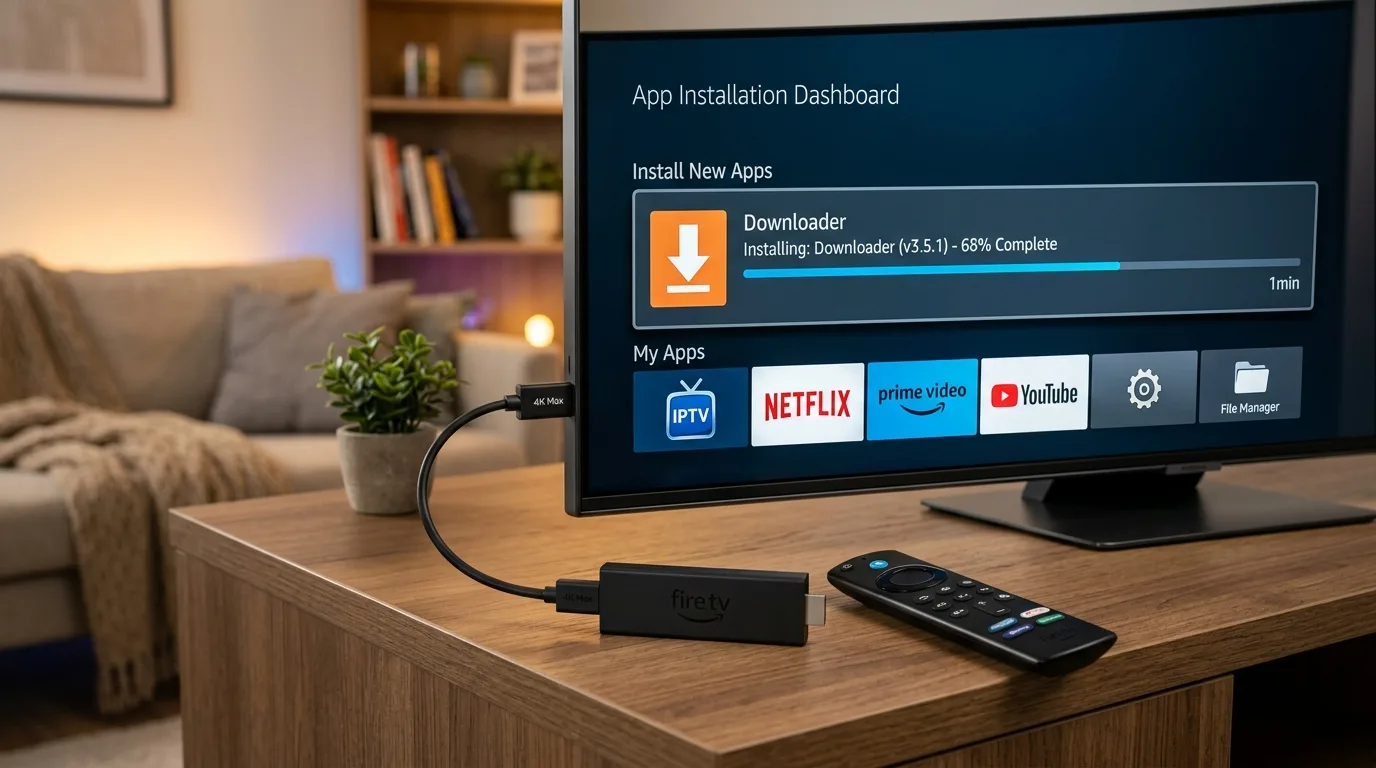
- Step 1: Install the free Downloader app from the official Amazon Appstore.
- Step 2: Unlock Developer Options by clicking your Firestick device name 7 times in Settings > My Fire TV > About.
- Step 3: Turn ON Install Unknown Apps for Downloader.
- Step 4: Launch Downloader and enter your player download code (e.g. IPTV Smarters or TiviMate).
- Step 5: Log in using your YourFlix Xtream Codes API credentials (Server URL, Username, Password) from your Free Trial.
The Amazon Fire TV Stick remains the world's most popular streaming device due to its powerful 4K hardware decoding, affordable price, and open Android-based operating system (Fire OS). Whether you are using a Firestick 4K Max, standard Fire TV Stick Lite, or Fire TV Cube, this comprehensive 2026 guide will have you streaming live TV in under three minutes.
To get started, make sure your device is connected to a stable Wi-Fi network (or Ethernet) and that you have received your official YourFlix account login details. If you don't have an account yet, you can claim a free 24-hour test trial on WhatsApp.
Step 1: Install the Free Downloader App
Because premium IPTV players are customized for broadcast reliability, they are installed via the verified Downloader App by AFTVnews:
Search for Downloader in the Amazon Appstore
From your Firestick Home Screen, navigate to the Find menu and click Search. Type “Downloader” using the on-screen keyboard or use the Alexa voice button on your remote.
Select the official orange Downloader tile by AFTVnews and click Get or Download. Wait a few seconds for the installation to finish.
Step 2: Enable Developer Options on Fire OS
On recent Fire OS updates, Amazon introduced a hidden menu feature similar to Android smartphones. Follow these steps to reveal Developer Options:
Unlock Developer Options via the 7-Click Method
- Go to Settings (the gear icon on the right side of your Firestick menu).
- Select My Fire TV.
- Click on About.
- Highlight the top line showing your device name (e.g., Fire TV Stick 4K).
- Press the Center Select Button on your remote 7 times repeatedly until a notification pops up at the bottom: “No need, you are already a developer.”
Step 3: Allow Install Unknown Apps for Downloader
Grant Permissions to Sideload Applications
- Press the Back button once to return to the My Fire TV menu.
- You will now see a new menu item: Developer Options. Click it.
- Select Install Unknown Apps (or Apps from Unknown Sources).
- Locate Downloader in the app list and toggle it to ON.
Step 4: Sideload Your Preferred IPTV Player
Now open the Downloader app from your Apps list. When prompted, click Allow to grant file access permissions. In the URL address bar, enter the direct download code for your preferred IPTV app:
| Player App | Recommended Use | Download Code | Performance |
|---|---|---|---|
| YourFlix Official APK | Direct pre-configured app for YourFlix subscribers | Provided on WhatsApp | Optimized 4K 60FPS |
| IPTV Smarters Pro | Clean interface, multi-screen, VOD cinema support | 80911 | High Stability |
| TiviMate Companion | Best Electronic Program Guide (EPG) layout | 278077 | Broadcaster Grade |
Click Go. Downloader will fetch the APK package. Once finished, click Install, then click Done. You can safely select Delete on the APK file to conserve valuable storage space on your Firestick.
Step 5: Log In with Xtream Codes API
Launch your installed player (e.g. IPTV Smarters Pro or YourFlix APK). Select Login with Xtream Codes API. You will be prompted for four simple fields:
Enter YourFlix Subscription Credentials
- Any Name:
YourFlix 4K - Username: (Your personal username sent via WhatsApp)
- Password: (Your secure password)
- Server URL / Portal: (The high-speed CDN server link provided in your activation message)
Click Add User or Login. The app will automatically sync 18,000+ live channels and 140,000+ movies in under 15 seconds!
💡 Prevent Firestick Overheating & Buffering
Amazon Firesticks have compact heat sinks. To maintain peak 4K performance, close background applications weekly and clear app cache. If you experience buffering during live sports, check our master diagnostic guide: How to Fix IPTV Buffering & Freezing.
7. Troubleshooting Common Firestick IPTV Errors
- “Parse Error during Installation”: Ensure you downloaded the 32-bit (armeabi-v7a) APK version compatible with Fire OS rather than a 64-bit Android mobile package.
- “Failed to Authorize / Check Login”: Double-check for trailing spaces in your username and password, and ensure the Server URL includes
http://. - “Stream Audio Plays with Black Screen”: In your player settings, switch hardware decoder from Hardware (HW) to Software (SW) or Hardware+.
Ready to Stream on Your Firestick?
Get instant access to 18,000+ live premium channels and all PPV sports events. Test it for 24 hours free with instant setup support.
Get Firestick Free Trial on WhatsApp →Frequently Asked Questions
How do I get the Downloader app on Amazon Firestick?
Go to the “Find” or “Search” icon on your Firestick home screen, type “Downloader”, select the orange Downloader app by AFTVnews from the Amazon Appstore, and click “Get” or “Download” to install it for free.
Why is Developer Options missing on my Firestick?
On recent Fire OS updates, Amazon hides Developer Options by default. To unlock it, navigate to Settings > My Fire TV > About, highlight your device name (e.g. Fire TV Stick 4K), and click the Center Select button 7 times until you see the message “No need, you are already a developer”.
Which IPTV player is best for Firestick?
TiviMate and IPTV Smarters Pro are the two highest-performing IPTV players for Amazon Firestick, offering fast channel switching, TV guide EPG integration, and multi-screen streaming. See our detailed comparison in our Best IPTV Players Guide.